




Your team's agreement history is your business’ most useful data set. Every signed contract sits in your repository as a record of your concessions, your acceptable fallback positions, and the terms your business runs on.
Skills in Saige Assist: Agent (Agent), new in Release 2026.3.1, let you put that record to work without starting over each time. Save a workflow once, and Agent reruns it on demand across your repository, in IntelAgree or in Microsoft Word. Download a skill, send it to a teammate, and they upload it to run it, too.
Agent now saves the workflows your team builds, maximizes more of your contract data, takes action inside IntelAgree with your approval, and brings those saved workflows into Microsoft Word.
On the request side, “Hide Questions Based on User Permissions,” also new in Release 2026.3.1, shortens the “Define Contract” page. Admins can hide any question a user's permissions have already answered, so people submitting a request see only what applies to them.
Here's how to use these new features:
Saige Assist: Agent
AI contract reviews work best when the AI understands the full context of your company’s contract history. With Agent, AI works inside your repository, drawing on historical context, version history, and your team’s playbooks.
But rest assured, everything happens within the permissions you already set. Agent works where a user is allowed to work, asks before it acts on your behalf, and labels its comments “commented via IntelAgree Saige Assist,” so you have a full audit trail.
Before you start: Make sure Agent is enabled and an admin has set the Agent permission for your users.
Skills: Workflows Your Team Can Reuse
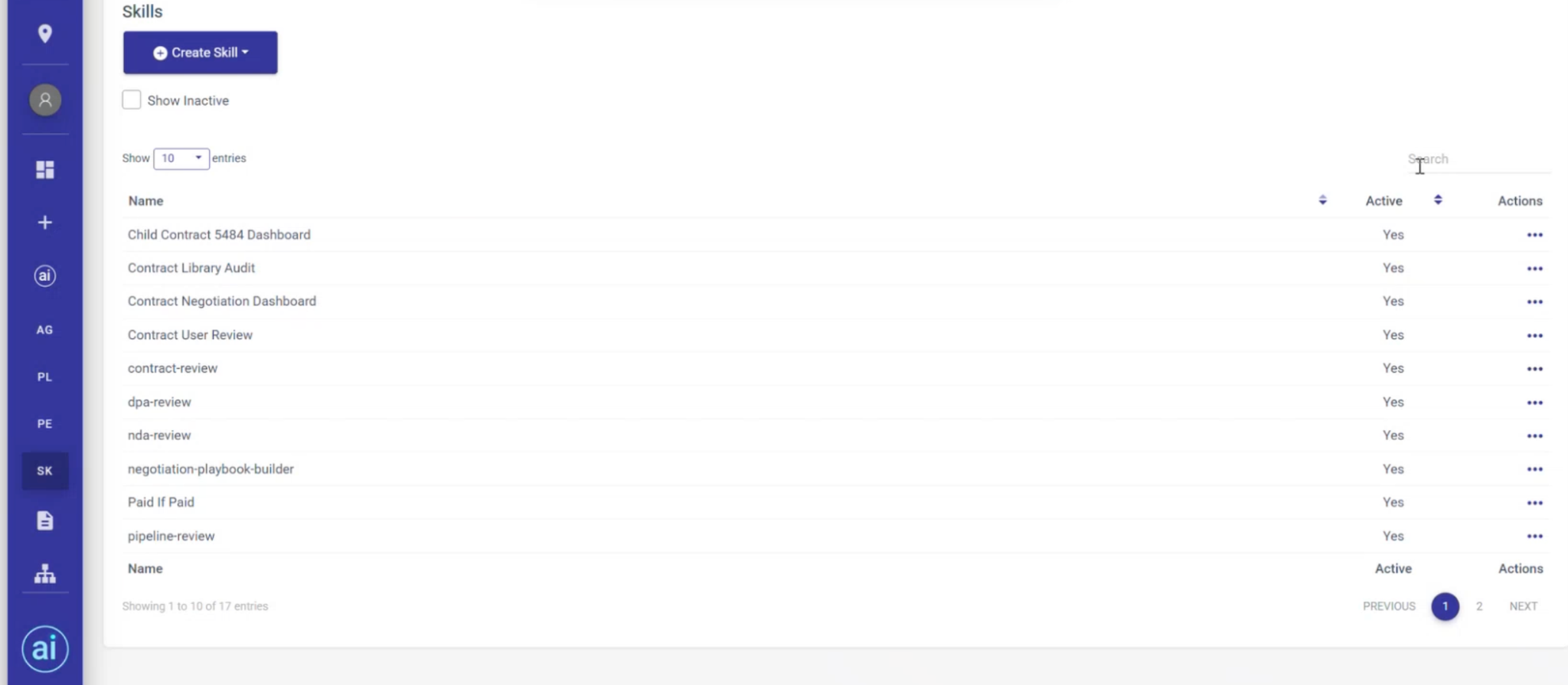
A skill saves a workflow step by step, so Agent reruns it on demand and your results stay more repeatable. Skills live below "Personas" in the Saige Assist navigation. There you can search your skills, download one for a teammate, or upload one they sent you. (You can even use skills in the Word add-in, without leaving the contract.)
Build or Add a Skill
- Open the Saige Assist section of the left navigation and select “Skills” (below “Personas”).
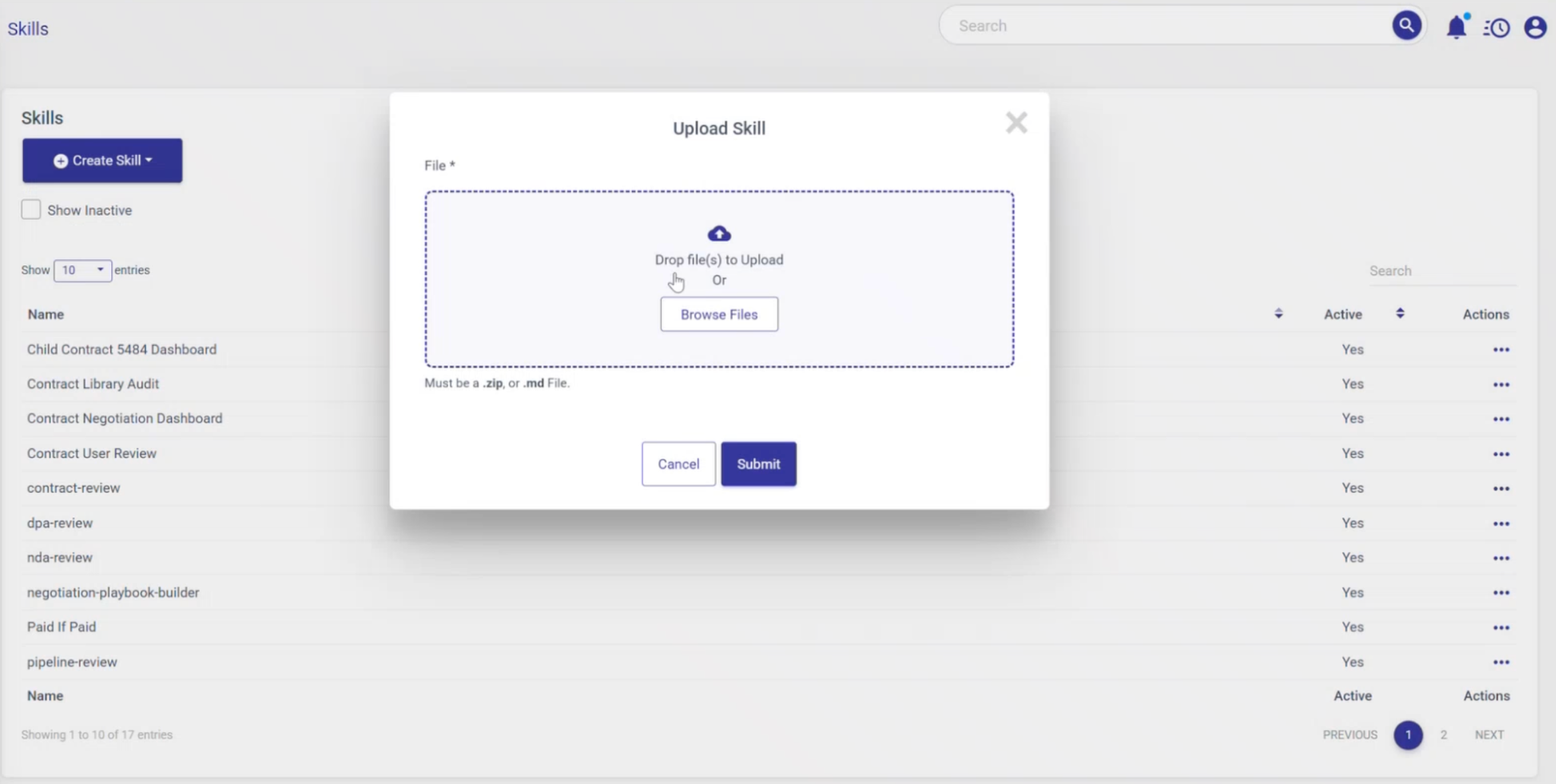
- Select Create and let Agent walk you through building it, or upload a markdown file a teammate sent you.
- Open a skill to review its markdown file, edit it, or download it to share.
Run a Skill
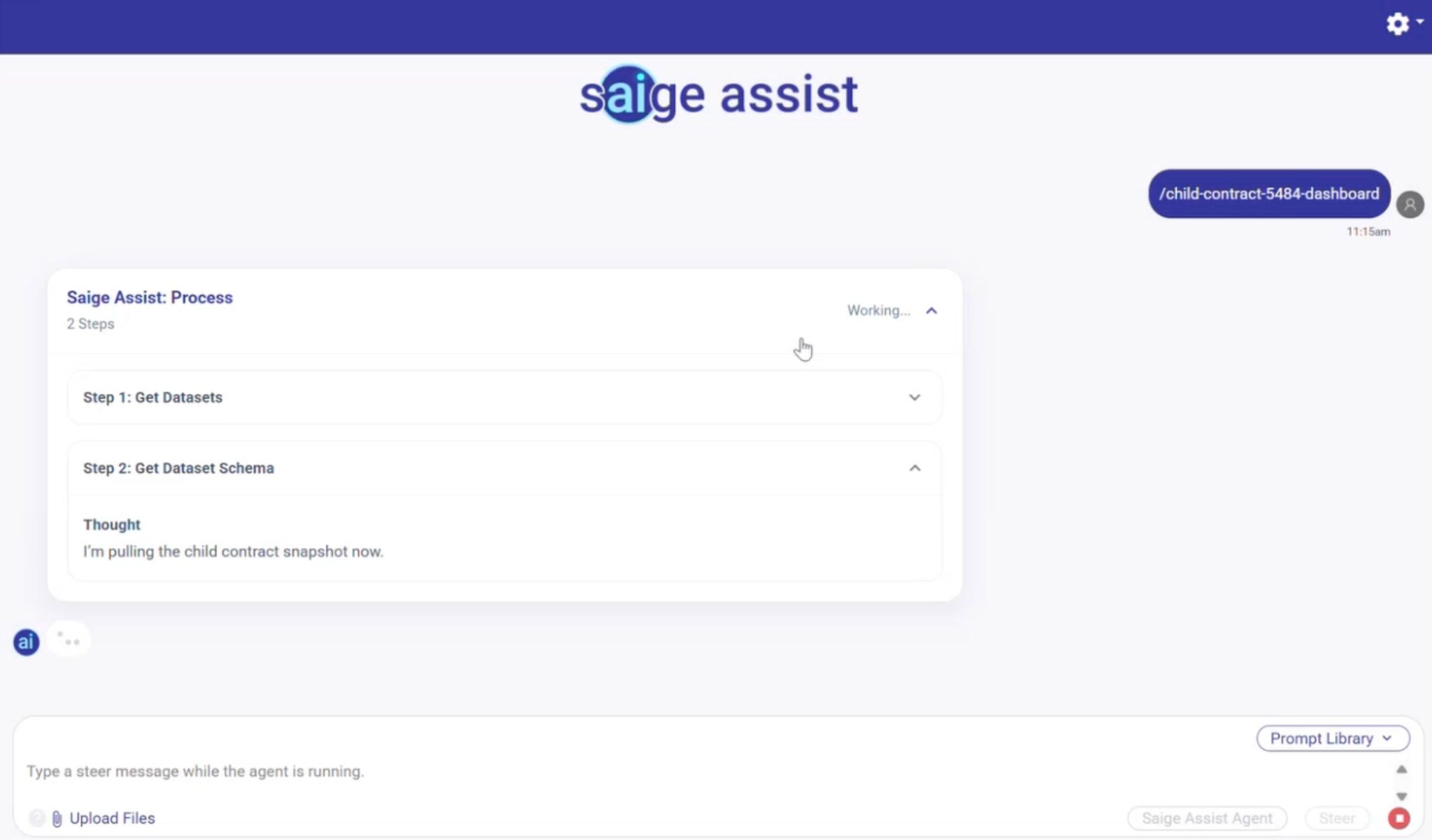
- In the Agent chat, type a forward slash to list your skills.
- Select the skill you want to run.
Not sure what to ask? Click the question button for suggestions. You can also pin the prompts you use most and choose a persona at the start of a chat.
Expanded Search Criteria
Agent's search now covers more of your contract and configuration data, including:
- Business keys
- Configurable risk scoring settings
- Attribute risk scores
- Contract risk scores
Attribute-based search covers what's been tagged, whether a person tagged it or Saige Assist: Markup did. Agent reads the full text of a contract, so you can search and report on terms nobody tagged, even terms inside a table. Ask it to pull rebates and discount rates from a set of contracts, for example, and you’ll get results without tagging anything first.
Redline Without Leaving Microsoft Word
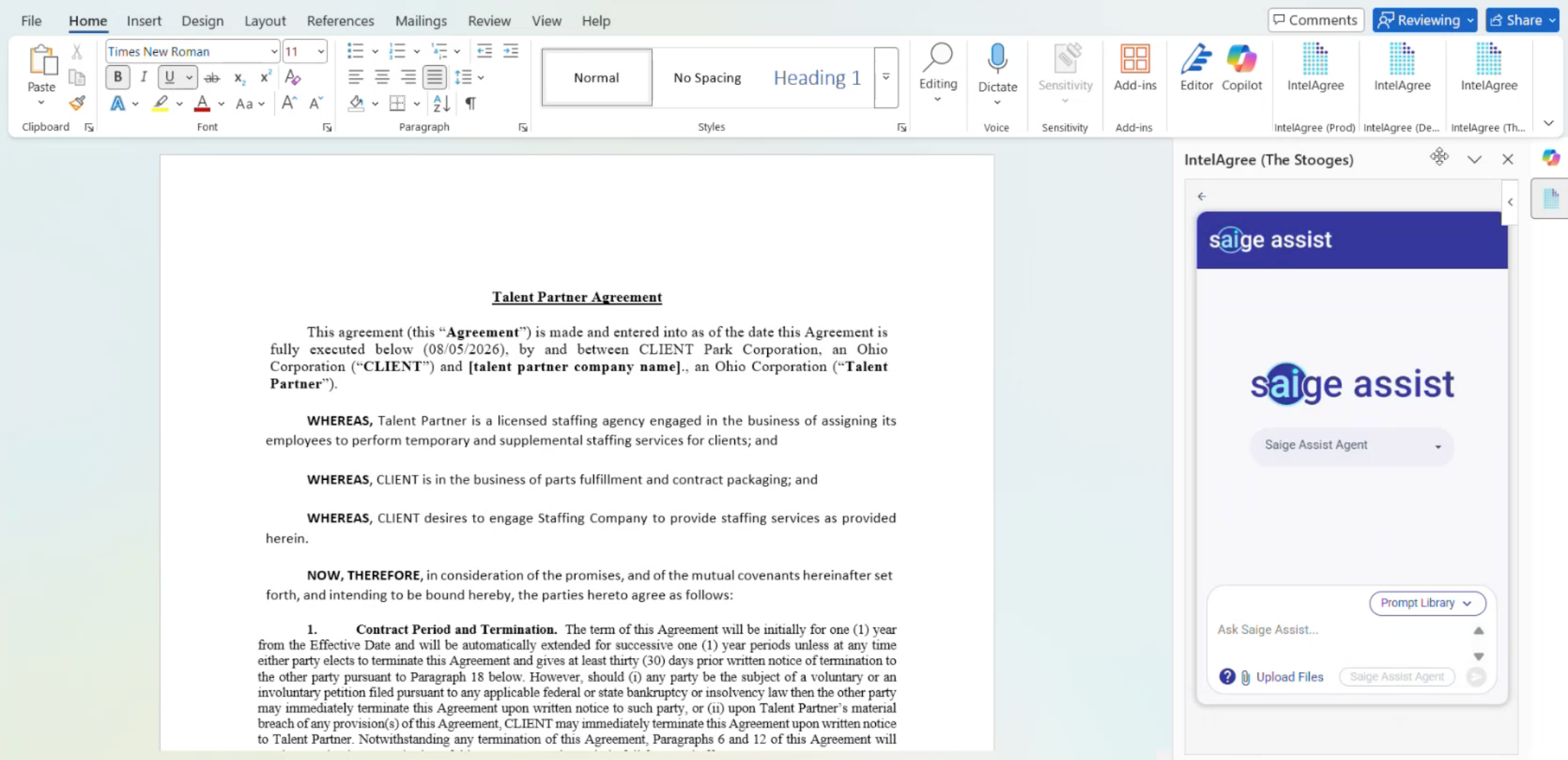
In the Microsoft Word add-in, Agent redlines against whatever source you choose, whether that's your playbook, a gold-standard agreement, the last contract you negotiated with this counterparty, or a playbook you've saved as a skill. You can ask it to redline surgically, or to replace a section outright.
From opening the document to saving the rule, here’s how to use it:
- Open a contract in Microsoft Word and enable "Track Changes."
- Open the Agent panel in the add-in.
- Type a forward slash to run a skill, or prompt Agent directly. For example: “Redline this agreement, make any high-risk clauses low-risk, and add comments to show your work.”
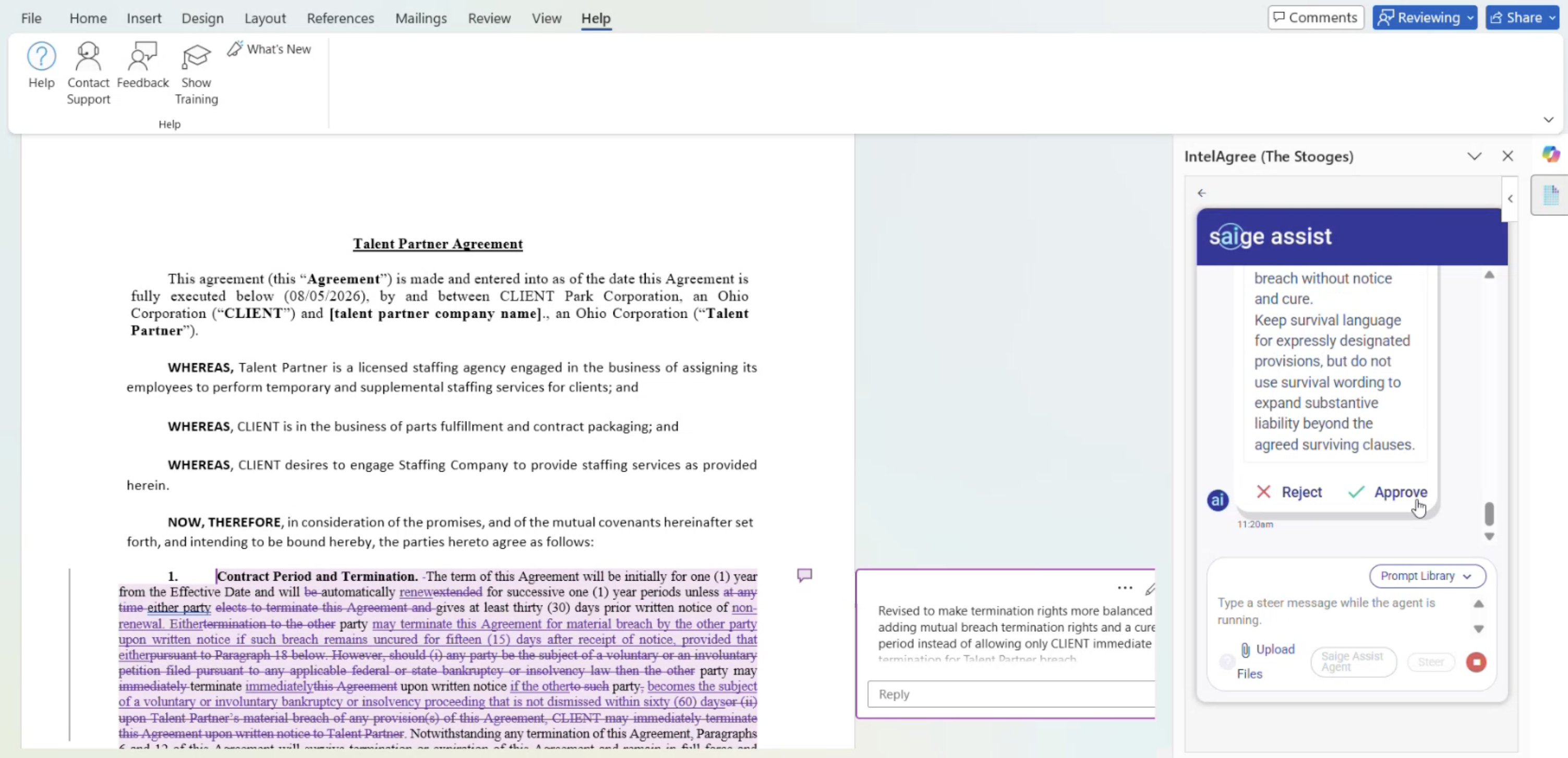
- Review the tracked changes and comments, then accept or reject them.
- Ask Agent to update a playbook or build one from a redline it created, and approve the action when it asks.
Update a Playbook From Inside Word
Reading and drafting is only half of contract work. The other half is logistical: open the playbook, find the rule, edit it, then save it. Now, the whole process happens in one place, including inside Microsoft Word.
With your permission, Agent acts inside IntelAgree on your behalf, creating ad hoc approvals and reminders, editing existing playbooks, adding attachments, building personas, and adding comments that tag the appropriate users.
Ask Agent to redline a clause in Word, decide it looks right, and tell Agent to make it a playbook rule. Agent shows you the playbook name, the contract type, and the rule it wrote, then waits for your approval before saving. Comments post as “commented via IntelAgree Saige Assist,” so it’s clear where the edits originate.
Stop and Steer: Change Course Mid-Prompt
With “Stop and Steer”, you stay in control of Agent’s output. “Stop” ends the current prompt, and “Steer” lets you add direction, generating a new prompt that directs Agent's next step.
For example, if you realize halfway through a search for contracts expiring in the next 90 days that you also want to search for contract creators, simply stop, steer, and Agent will provide updated results.
Hide Questions Based on User Permissions
A shorter “Define Contract” page means faster requests for your users and less explaining for you. Now an admin can hide questions a user's permissions have already answered, so a requester with access to one organization, one legal entity, and one contract type skips all three.
The narrower someone's permissions, the shorter the page gets. Requesters click through fewer questions, and admins spend less onboarding time explaining fields users can't change.
Nine questions can be configured this way: Organization, Legal Entity, # of Contracts, Is this a Request, Add Contract Using, Contract Type, Contract Template, Contract Name, and Contains Signatures.
How to Configure “Hide Questions Based Off Permissions”:
- Confirm you have the “Manage Subscriber Configuration” permission.
- Open the “Configuration” page and find the “Add Contract Wizard” group.
- Open the “Hide Questions Based Off Permissions” flyout.
- Select the questions you want hidden.
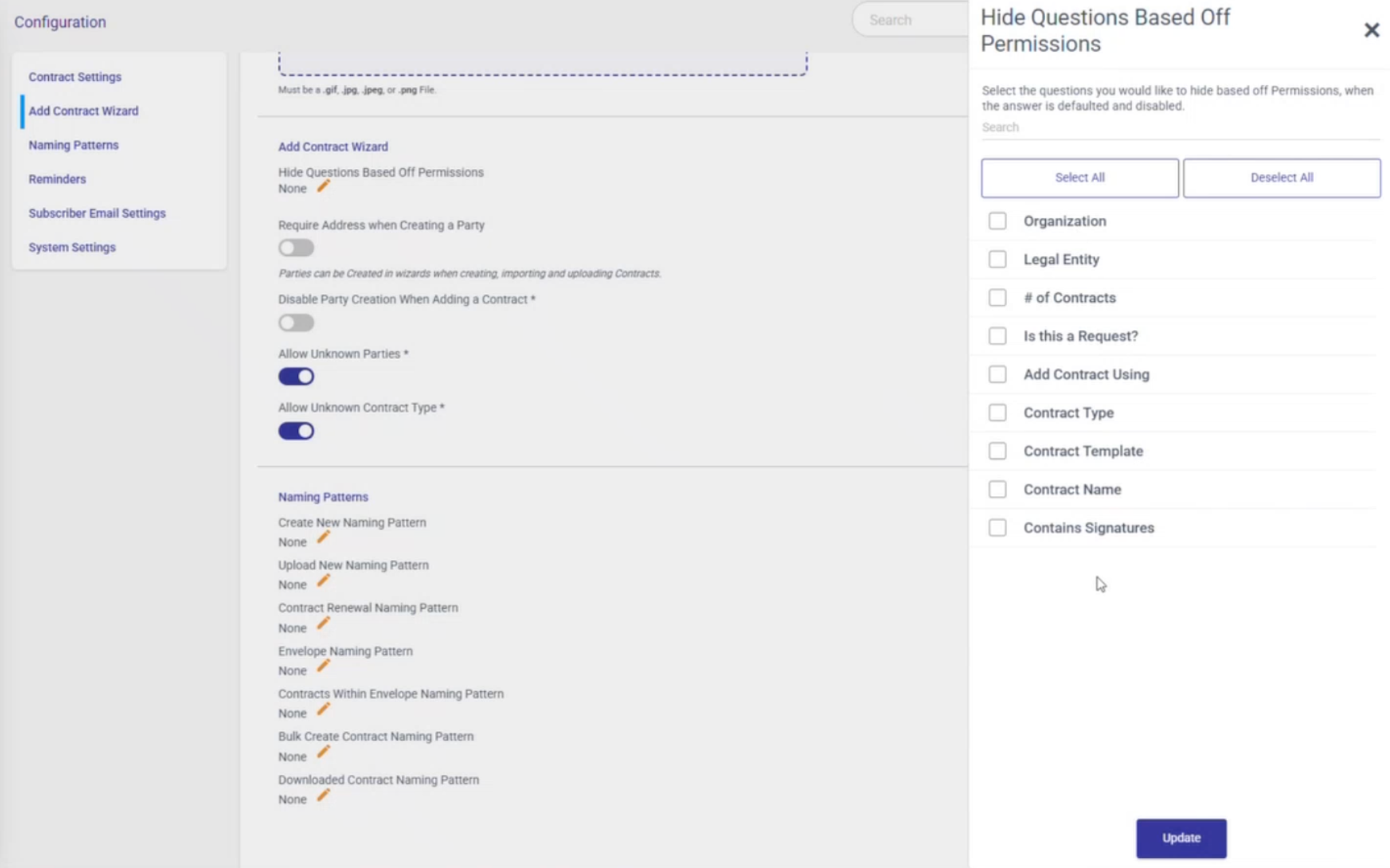
- Click “Update,” then “Submit.” The setting will read “Enabled.”
- Open “Add Contract” as a user with narrow permissions to see the shortened “Define Contract” page.
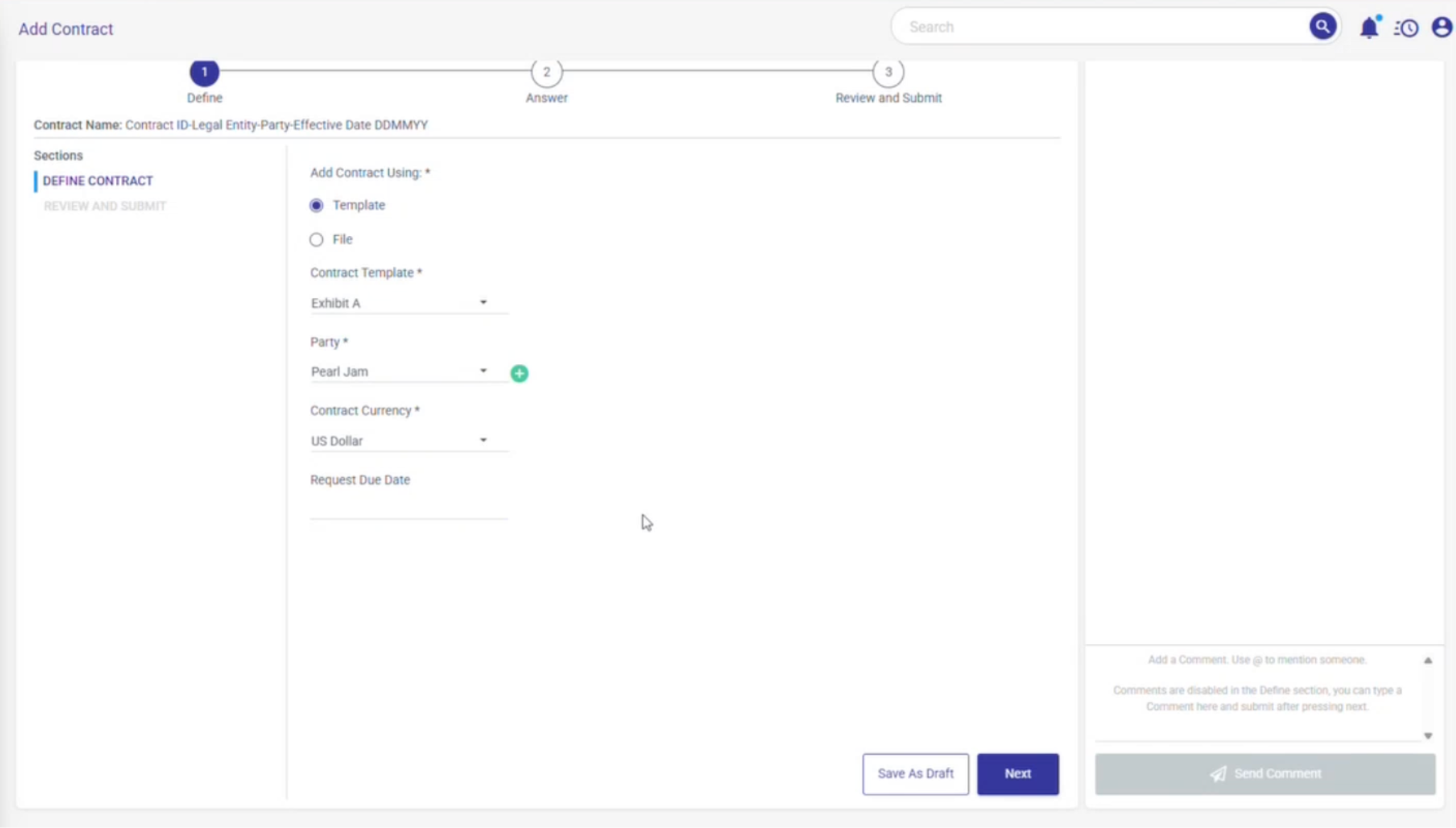
Keep in mind: A question only hides when a user has one option to choose from, so a user with full permissions still sees every question. The setting is subscription-wide, not per user or contract type.
Why This Matters
We built these updates to give more freedom to the people doing the work and more control to the people running the contract process.
Skills let your team rerun its best workflows on demand and get more repeatable results. Hide Questions clears the request form of questions a user can't change, so requests take fewer clicks. Both run inside the permissions you set, so the structure your CLM software provides stays intact.
What's Coming Next
In future releases, expect to see:
- Saige Assist Agent: MCP: a secure Model Context Protocol (MCP) framework that lets Saige Assist connect to your enterprise systems, tools, and data.
- Reminders: automated reminder workflows that trigger, repeat, and end based on cadence rules, attribute conditions, and contract context.
- Redlining: enhanced redlining that makes it easy to see which rules are compliant, with more surgical edits that avoid rip-and-replace.
Wrapping Up
To enable Agent, or for more detail on anything in this release, reach out to your IntelAgree CSM or schedule a demo.
Additional Reading
 What's New: Use IntelAgree in Your Preferred Language — each person works in their own language on the same agreements
 What's New: Custom Labels for a More Familiar IntelAgree — rename UI terms so IntelAgree speaks your team's vocabulary
 What's New: Democratize Contract Intelligence with Question Attributes — ask questions of your contracts without training a model first