




.png)
IntelAgree’s recent release gives administrators more control over how contracts get created and signed, including out-of-office coverage and a leaner add contract wizard. These features take manual steps off your team's plate so they can work more efficiently.
Our latest Lunch & Learn webinar featured IntelAgree's product experts walking through some of the most useful updates from our last few releases. Here are seven key takeaways:
Takeaway 1: Out-of-Office Coverage Hands Approvals Over
When someone on your approval chain is out of office for a week, the agreements in their queue shouldn’t just sit there.
Out-of-office coverage works in two steps:
- An administrator enables out-of-office coverage on a user record and selects the teams or individuals allowed to act on that person's behalf.
- Then that user schedules their time away and picks from those approved coverage users.

If you're already stuck in an airport, an administrator can schedule it for you.

Whoever covers for you gets an out-of-office coverage section below their profile name. They expand it and pick you from the list to switch into your view. An orange banner runs across every page naming who they're acting as to avoid any confusion, and coverage stays limited to actions on contract records, such as approving and signing. When they sign, the signature reads as their name signing on your behalf, and the activity log records it the same way.

When your coverage ends, you get a digest listing the latest activities with links to each agreement. The full list sits in the parent event, where you can filter by action or export to Excel.
Coverage has to be enabled on a user record before anyone can act on your behalf. Without it, marking yourself out of office only adds context to comments on agreements you follow, so your team knows not to wait on you.

Takeaway 2: Add Contract Wizard Enhancements Accelerate Contract Creation
Not all questions appearing in the beginning of the “add contract” wizard apply to the person answering. A requestor who can only submit requests, for example, shouldn’t have to wade through create-vs-upload questions.
You can now reduce clicks by hiding questions on the define screen based on a user's permission set. On each contract type, you also control which steps follow the smart form.

Additionally, you can hide sections of the wizard that may not be relevant for your users based on the contract type.

The result is a shorter path to a created agreement, with your users seeing only the questions that apply to them.
Takeaway 3: Custom Labels Put IntelAgree in Your Team's Language
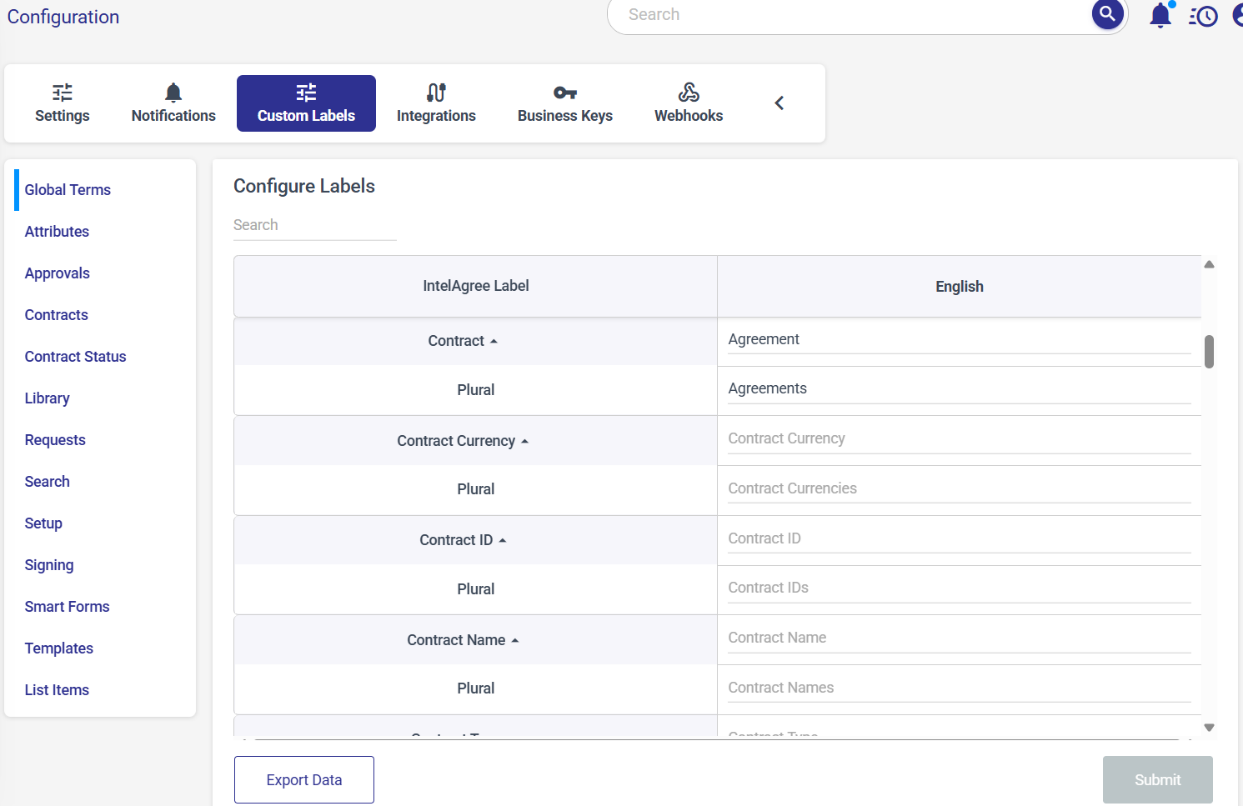
When your team says agreement and the system says contract, terminology becomes one more thing to learn alongside a whole new CLM system.
With Custom Labels activated, you can rename the platform’s terminology to match your team’s own vocabulary. Change contract to agreement, and your users see the new term across the pages they work in.
Takeaway 4: Signing Attachments Now Arrive in the Signature Email
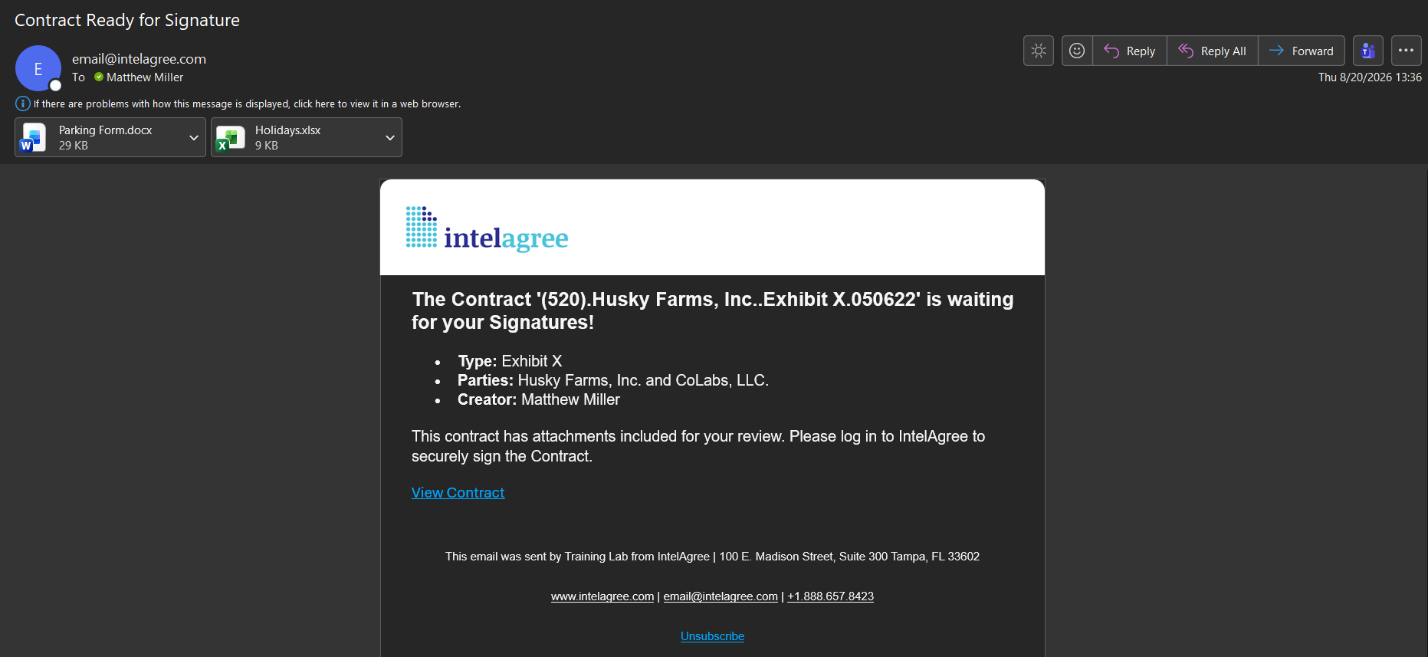
Some documents should be in front of the signer before they sign, like a parking form or a certificate of insurance. Those attachments now send with the signature request email, without logging in to IntelAgree to see them.
Once you've sent an agreement for signature, its attachments lock. Anyone opening the record later sees exactly what the signers received, and the activity log indicates if someone used the download link.
Takeaway 5: Signer Fields Collect Information at Signature
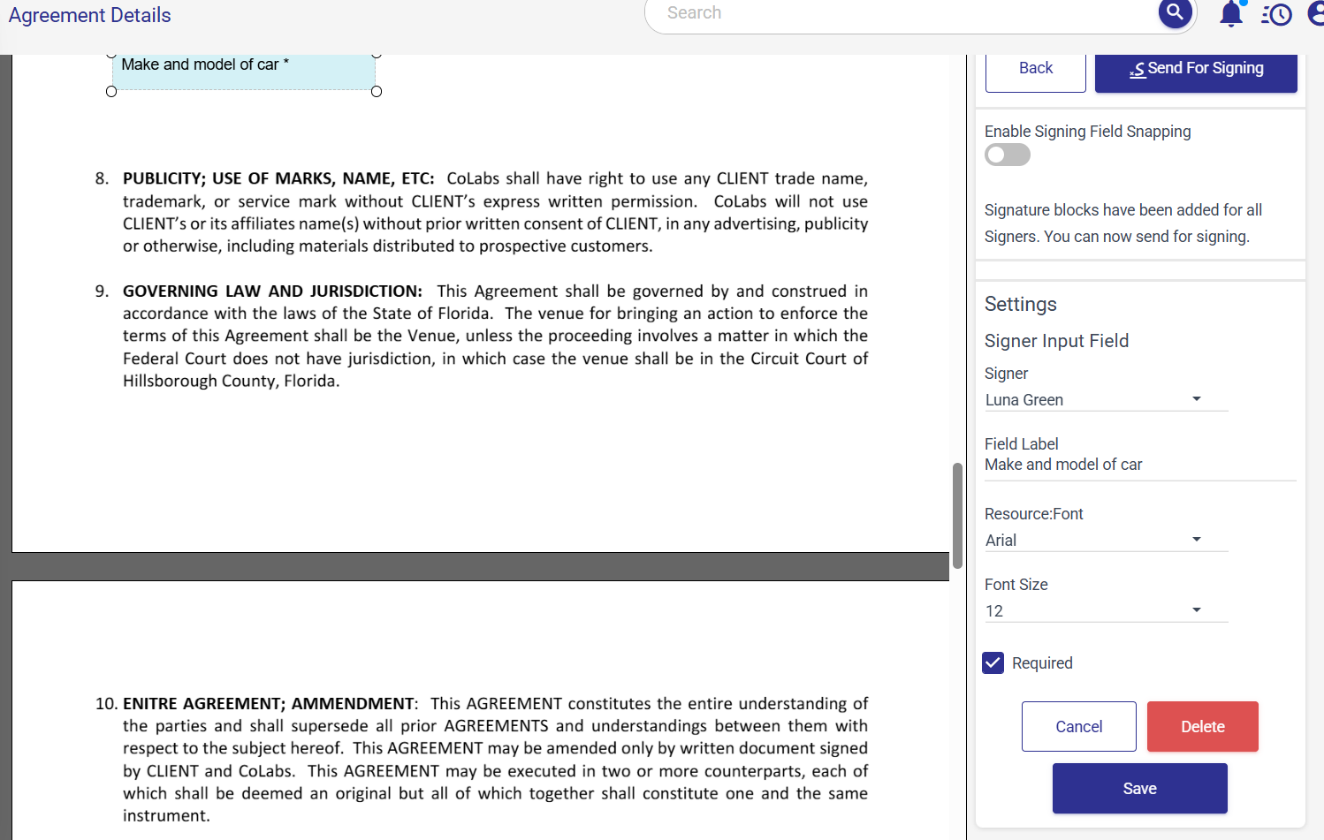
Collecting information only the signer has — like the make and model of their car for a parking pass — used to mean setting up a party signer smart form. And that only worked if the document was a first version built from a template.
Now you place the fields on the document yourself, right before you send it for signature. Drop a signer input field where you want the answer and size it to fit. From there, you choose which signer completes it. Set the font to match the document, and mark the field required or optional.
The signer fills it in as they sign, so you get the information and the signature in one step.
Takeaway 6: Days in Current Status Shows Contract Cycle Time
Sometimes you know an agreement is awaiting signature, but you don't know whether it showed up yesterday or 11 days ago.
Days in current status is no longer analytics-only. It's still on the contracts overview graph, but now you can add it as a column to data tables and to search results. Pull up everything awaiting approval, and you’ll see how long each one has been sitting in that stage. Set it on the “Search Results” table, and the column applies across every search in your subscription.

Takeaway 7: Party Signer Notifications Now Use Your Wording
The emails your counterparties receive should reflect your company’s unique voice and identity. With IntelAgree’s new ability to configure party signer notifications, now they can.
You can edit the templates for both single agreement and envelope sends, so nothing generic goes out under your name.

Wrapping Up
Contract work is specific to how your organization operates, down to the labels on your screens and who can act when someone's away. Each of these updates is another way to fit IntelAgree to how your team already works.
Visit IntelAgree University to watch the full recording, or reach out to your CSM to talk through any of the features covered here.
Additional Reading
 What's New: Connect, Share, and Learn with IntelAgree Community — Join the IntelAgree Community to connect with peers, share best practices, and enhance your contract management experience with real-world insights.
 The One-Model Myth in AI Contract Management — Discover how to effectively utilize machine learning and generative AI in contract management, ensuring your data is ready and projects succeed.
 Contract Risk Management: How to Identify and Prevent Exposure at Scale — Contract risk management at scale requires more than manual review. Learn where risk hides in your portfolio and how AI helps teams find and act…